Your team and your AI agents, working from the same notes.
Self-hosted Markdown notes. Your team writes and comments in the browser, and your coding agents read and update the same notes through the CLI or MCP. Plain files, on your own server.
Stop pasting the same project context into every agent chat and every teammate’s DM.
Try it on your own machine first, then add your team. Requires Docker and Compose. AI agents are optional; connect your own.
MIT licensed · plain .md files · runs on your own server

A project brief in a team workspace, with a teammate’s comment beside it (team setup).
Plain files
Every note is a .md file in a folder you choose, so you can keep using it in any other editor.
On a server you manage
Run it with Docker, for yourself or for your whole team. There is no mdnest account and no per-seat price.
Your team and your agents use the same notes
People work in the browser. Agents use the mdnest CLI or MCP. Both change the same saved notes.
One teammate writes it. Your agent works from it. Another teammate reviews it.
-
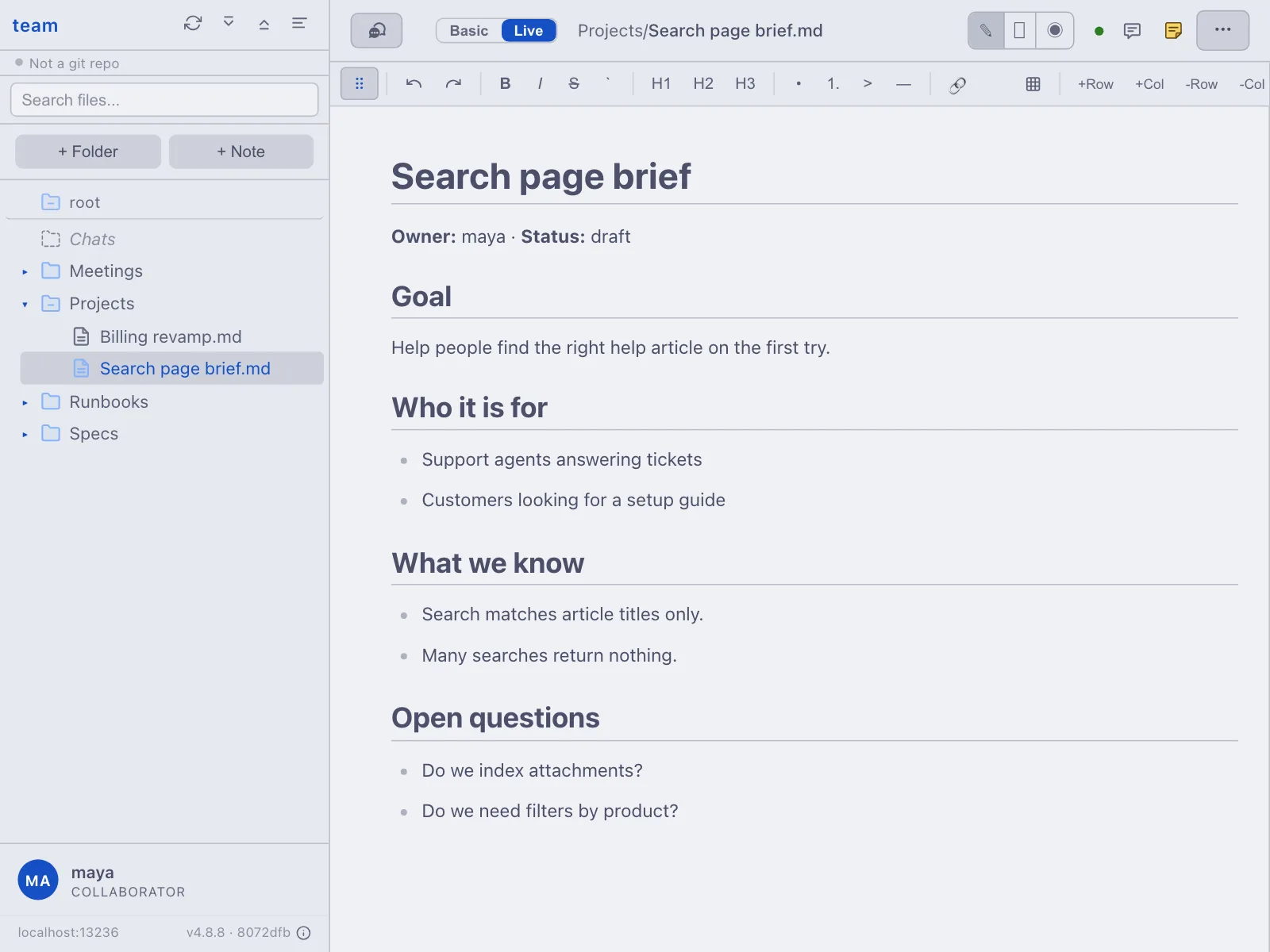
A teammate writes a project brief in mdnest.
-
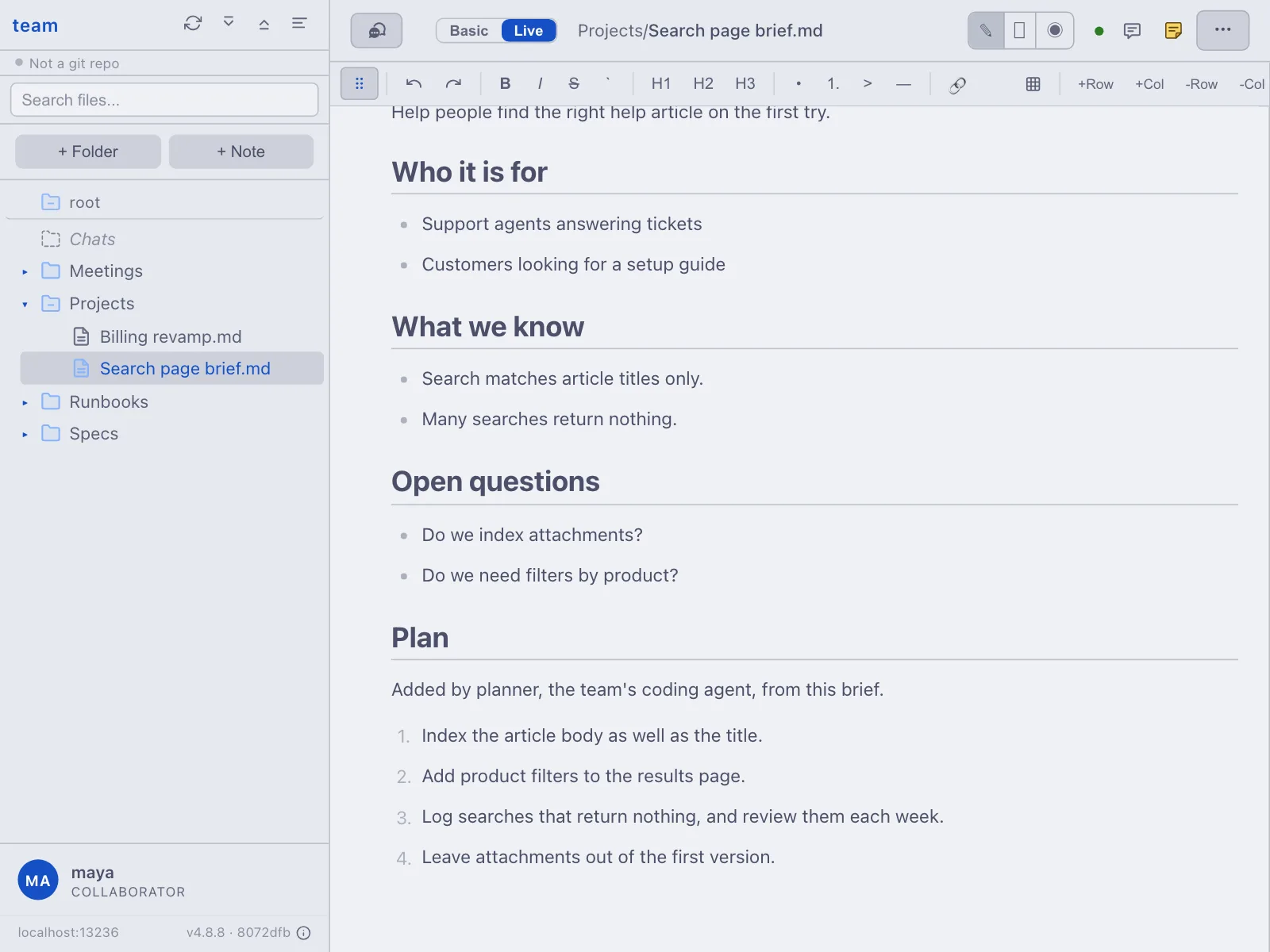
Your connected agent reads the brief and adds a plan to the note.
-
Another teammate reviews the plan and leaves a comment beside it.
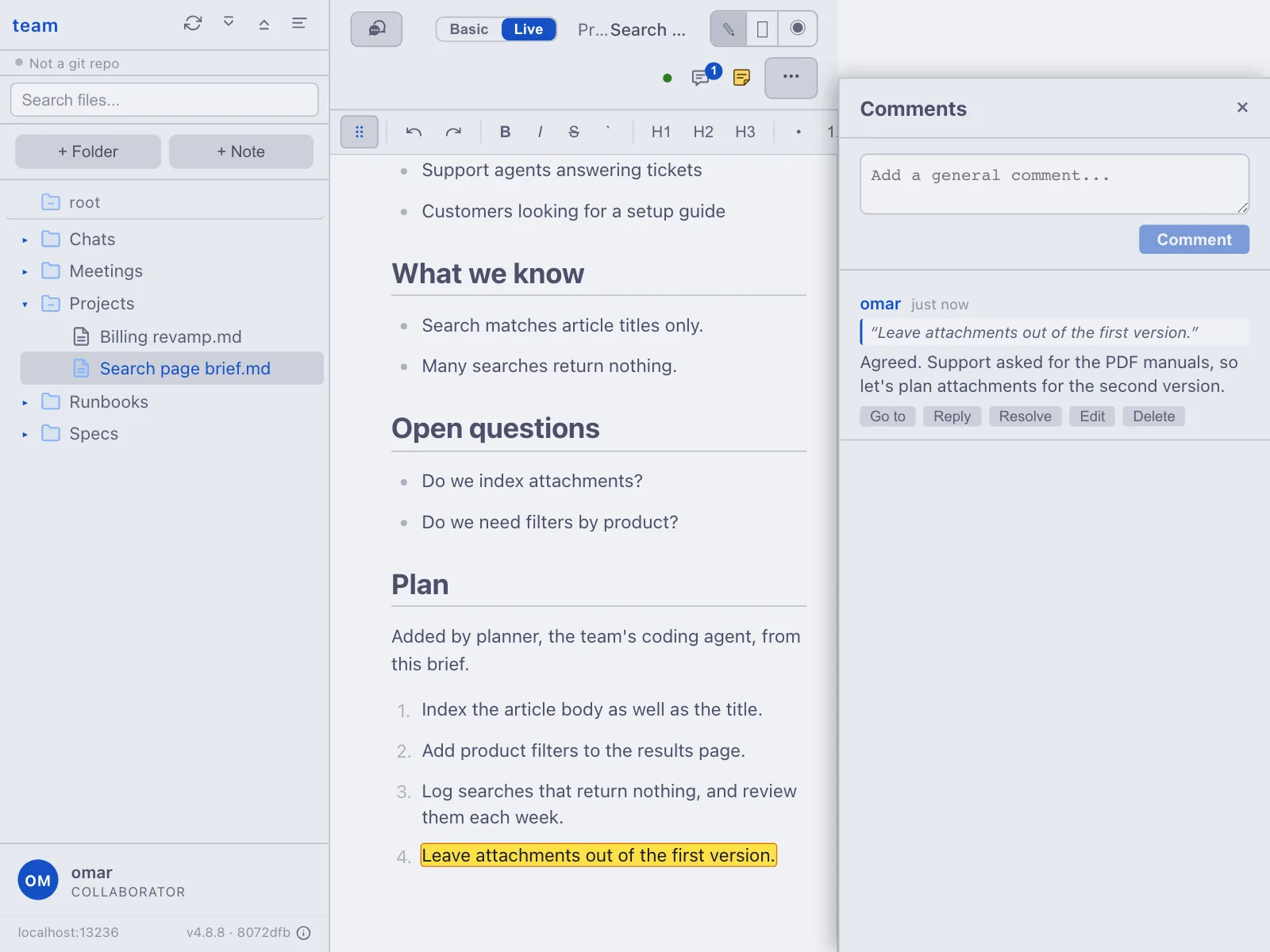


Your team and your agent work with the same saved note.
Comments need team setup. Alone, steps 1 and 2 work in the basic install.
An agent needs the mdnest CLI and a token for your server. How to connect an agent.
Optional: a six-minute walkthrough of notes, drawings, the task board and the terminal on one server.
Plan the work with your team and your agents in one chat.
Teammates and connected agents talk in the same conversation, next to the notes they are working on.
You run your agents separately. mdnest gives them a place to read and reply. Private chats need team setup.
How chat works
One knowledge base for the whole team
Give each person the folders they need, and let them sign in with the account they already have.
Roles and access
People only see the workspaces and folders they are given, read-only or read-write. There are three role levels, and groups for when the list gets long.
Sign in with your company login
Connect your identity provider through OIDC: Google Workspace, Okta, Microsoft Entra, Keycloak or Auth0. It keeps handling MFA.
Comments and presence
Leave comment threads beside the text, and see who else has the note open. This is not live co-editing like a shared online document.
Shared and private chats
A chat can be open to everyone in a workspace, or private to the people you invite. An agent gets in only as one of those people.
Team features need team setup: a database and a sign-in provider. How to add your team.
What you work with every day

Folders and search
Nest folders as deep as you like, and search the full text of a workspace. The folders on disk are the ones you see.
The folder tree
Explain your ideas
Write Mermaid diagrams as text in a note and see them drawn. Drawings (optional) give you a whiteboard saved as Markdown.
Diagrams Drawings
Task board Optional
The checkboxes in your notes appear as cards on a board. Move a card and the line in the note changes.
How the task board worksEverything else, in one line each
- Slide decks OptionalA Marp deck written as an ordinary note, with the slides shown beside it.
- StickiesA board of quick cards for each person. It is private to your account in mdnest, but the person running the server can still access its stored data.
- Several workspacesEach folder you mount is its own workspace, for example one per team.
- Move, copy and downloadMove or copy notes and folders between workspaces. Download a folder as a zip.
- Copy between serversCopy a note’s contents in one mdnest and paste it into a folder on another.
- TablesAdd and remove rows and columns with buttons. Underneath it stays a Markdown table.
- Wikilinks
[[note]]links work, so an Obsidian vault can come across as it is. - ImagesPaste or drop a picture into a note. It is saved next to the note.
- Who wrote a note Needs team setupSee who created a note, who edited it last, and everyone who contributed.
- REST API and tokensRevocable API tokens for scripts and agents, and a REST API for everything the app does.
- MCP server OptionalFor agents that connect over MCP instead of a shell.
- Agent approvals OptionalExperimental: answer an agent’s permission prompt from mdnest instead of its terminal.
- Two-factor sign-inTOTP codes for local accounts.
- Light and dark themesFollows your system, or pick one.
- On a phoneThe app works on a small screen.
- KubernetesA Helm chart, if you already run a cluster.
Your notes stay plain files
Files on your disk
Every note is a .md file in a folder on the server. You can open it in any editor, search it with grep, or copy the folder somewhere else. No database holds your writing. Team mode’s database stores accounts and permissions only.
Backup is a separate step
Saving a note writes the file on your server. That is not an off-server backup by itself. Optional: back up the folder to a git remote you choose. With git backup on, you can also open a note’s history and restore an older version.
Set up git backupStart with your own notes.
Run mdnest on a computer you manage. You need Docker and Compose.
Run these commands in a terminal on the computer that will run mdnestthe computer that stays on, such as a home server, a mini PC or a small cloud VMthe server your team will use.
mkdir mdnest && cd mdnest
curl -fsSLo docker-compose.yml https://raw.githubusercontent.com/mahsanamin/mdnest/main/deploy/compose/docker-compose.yml
echo "MDNEST_PASSWORD=$(openssl rand -base64 18)"  > .env
echo "MDNEST_JWT_SECRET=$(openssl rand -hex 32)"  >> .env
docker compose up -d
Paste this prompt into Claude Code, Codex or another coding agent on the computer that will run mdnestthe computer that stays onthe server your team will use. It runs the same steps as the manual setup, and every command it will run is written in the prompt, so you can read it first. It never sees your admin password, and you create the API token yourself.
Set up mdnest, a self-hosted Markdown notes server, on this computer for me.
Do these steps in order. If anything fails or looks different, stop and tell me.

1. Check that Docker is running and Compose v2 is installed (docker info, docker compose version).
2. Check that port 3236 is free. If it is not, ask me which port to use.
3. Create the folder ~/mdnest and work inside it. If it already exists, ask me first.
4. Download the compose file:
   curl -fsSLo docker-compose.yml https://raw.githubusercontent.com/mahsanamin/mdnest/main/deploy/compose/docker-compose.yml
5. Run these exact commands, so the secrets never appear in this chat. Never print or read .env.
   echo "MDNEST_PASSWORD=$(openssl rand -base64 18)"  > .env
   echo "MDNEST_JWT_SECRET=$(openssl rand -hex 32)"  >> .env
6. Run docker compose up -d, then wait up to a minute for http://localhost:3236 to return HTTP 200.
   If it does not, show me the last 50 lines of docker compose logs.
7. If mdnest is already installed, tell me its version and wait for my answer before replacing it.
   Then install the CLI:
   curl -fsSL http://localhost:3236/cli/install.sh | bash -s -- http://localhost:3236
   If it needs sudo, do not ask for my password. Give me the command to run myself.
8. Tell me to open http://localhost:3236 and sign in as admin. The password is the
   MDNEST_PASSWORD line in .env (give me the full path).
9. Ask me to create an API token in mdnest (Settings, then API Tokens) and run
   "mdnest login http://localhost:3236" myself. Never ask for the token or the
   password, and never run mdnest login yourself.
Then: open http://localhost:3236, sign in as admin with the password from .env, and create your first note. Next, connect your agent. Every step is in the quick start.
Then: put it on your tailnet with one tailscale serve command and open it from your phone, with HTTPS and no ports opened. The Tailscale guide has the steps.
Then: switch on team mode. It adds a PostgreSQL database for accounts and permissions, and company sign-in through SSO if you want it. Your notes stay plain files.
Questions before you install
What do I need to install?
Docker with Compose on a computer you manage. The basic setup is one compose file and two secrets, with nothing to clone or build. Team mode adds a PostgreSQL database, which the same compose file can run for you. The quick start has the steps.
Do I need an AI agent?
No. mdnest works as a notes app for people on its own. Agents are optional. If you use one, you connect it yourself.
Is an AI service included?
No. mdnest contains no AI model and calls no AI provider. You connect agents you already run, such as Claude Code or Codex, through the mdnest CLI or the optional MCP server. Each agent handles data according to its own provider’s terms.
What costs money?
mdnest is free and MIT licensed. There is no paid tier and no per-seat price. You pay for your own server and for any agent account you use.
Where do my notes go?
Your notes are stored as plain .md files on your server. Optional git backup and connected agents use the services you choose. In team mode, PostgreSQL stores accounts and permissions, never your notes.
What does team setup need?
A PostgreSQL database for accounts and permissions, and a way to sign in: local accounts with optional two-factor codes, or your company’s SSO through OIDC. Comments and presence are a setting you switch on. See adding your team.
What is mdnest, in one sentence?
A Markdown notes server you run yourself, where your team works in the browser and your AI agents work with the same notes through the mdnest CLI or MCP.
Can several AI agents work on a task together?
Yes. Any note can become a chat. People post from the browser, and agents join through the mdnest CLI or the MCP server, then @mention each other to hand off work. You run each agent yourself. The whole conversation is a plain .md file. How chat works.
Can it run inside our company network, with no internet access?
Yes. Your notes, chats and files are stored on your server and are not sent anywhere else, unless you set up git backup to a repository you choose. Company sign-in talks only to the sign-in provider you configure. Two things reach the internet by default. The server asks GitHub about once an hour whether a newer mdnest version exists, so it can show an update notice, and you can turn that off. And the drawing editor loads its handwriting fonts from a public CDN the first time someone opens a drawing. Without internet access, drawings still work with a plain font. The security guide has the details.
Try mdnest on your own computer
Requires Docker and Compose. AI agents are optional; connect your own.
Like mdnest? Star it on GitHub so other teams can find it.
Want to fix a bug or add something?
Fork the repo and clone your copy in one step with the GitHub CLI:
gh repo fork mahsanamin/mdnest --clone
Then open a pull request against the develop branch. No GitHub CLI? Fork it on GitHub. Looking for something to work on? See the open issues.